
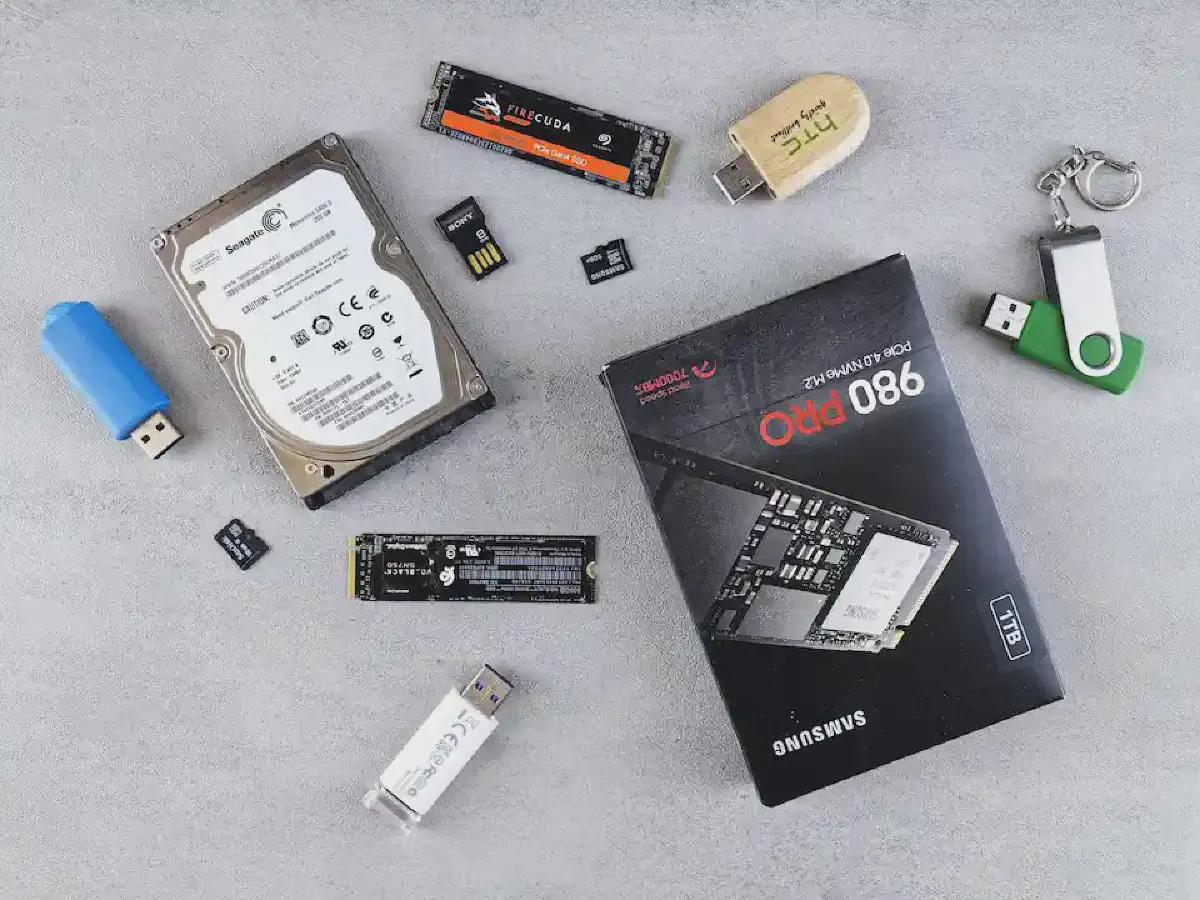
SSD and HDD with “Storage Spaces” #
I know this may sound weird, but instead of buying one massive, expensive SSD, you can buy both a cheaper SSD and an HDD. Ideally, find a cheap, older SSD and combine them using the Storage Spaces feature in Windows.
- Find a boot drive: Buy the fastest SSD with the smallest capacity (128GB) you can find within your budget. These kinds of SSDs are very affordable. If you already have one, keep using it, 128GB is more than enough for your boot drive.
- The secondary combo: Since even 512GB SSDs are expensive nowadays, you can buy a smaller one instead, 128GB or 256GB works fine for most people and pair it with an HDD of any capacity you need.
- Setup: Follow this link to set up and manage Storage Spaces: Storage Spaces in Windows
How does it work: A Storage Space is a logical collection of multiple physical drives grouped together to act as a single unit. Your faster drive (the SSD) will be used for files, applications, or games that you frequently open. Your slower drive (the HDD) will be used for less frequent data. Windows automatically moves frequently accessed “hot” data to the fast SSD and less frequently used “cold” data to the slow HDD to optimize performance.
Pros:
- Budget: Two extra drives may sound like a lot, and while a single SSD is faster than an HDD, not everything on your computer needs maximum speed. A cheap SSD paired with a high capacity HDD is still much cheaper than one massive SSD.
- Extreme flexibility: You can mix and match different drive sizes, brands, and types (SATA, NVMe) in a single pool. You can also add new drives to an existing pool at any time.
- Easy backup: “Mirror spaces” are designed to increase performance and protect your files from drive failure by keeping multiple copies of your data.
Cons:
- Slow initial load: You may experience slower speeds the first time you run an app while Windows builds your “heat map”.
- Poor parity performance: Write speeds in “Parity” mode (similar to RAID 5) are notoriously slow, often dropping significantly during heavy workloads.
- High CPU usage: Since this is a software-based solution, your computer’s CPU handles all data calculations. This can impact overall system performance during heavy disk activity.
- Complexity for advanced settings: While the basic setup is easy, fine-tuning or troubleshooting deep issues often requires using complex PowerShell commands.
- Compatibility issues with USB: Some external USB enclosures hide individual drive identities, which can prevent Storage Spaces from recognizing them. Regardless, you should avoid using USB flash drives for Storage Spaces due to their inability to handle frequent, high-volume writing.
HDD with Intel Optane or AMD StoreMI #
Both Intel Optane and AMD StoreMI work the same way, one for Intel and one for AMD, both are discontinued
I’m only covering Intel Optane because both work in a similar way, just on different CPUs. However, AMD CPUs do not require a dedicated physical drive like Intel Optane to function.
- Intel Optane: Requires a specific, proprietary hardware module (the Optane M.2 stick) to act as the cache.
- AMD StoreMI: Is a software-based solution. It doesn’t need a special “StoreMI” brand drive, it can use a small portion of your existing RAM (up to 2GB) or any standard, cheap SSD you already own to accelerate your HDD.
Intel Optane wasn’t a standard SSD. It used a special technology called “3D XPoint”. Intel has officially discontinued Optane for consumers. You can now only find these as “New Old Stock” or on the used market (eBay). Even though Optane are discontinued, and most consumer Optane drives are tiny (16GB, 32GB, 58GB), too small for demanding, large apps or games, it can significantly improve boot times and application responsiveness of your daily use if you are only using HDD
How does it work: Optane acts as a fast buffer, identifying frequently used applications and data to accelerate system responsiveness. Built on non-volatile, high-endurance memory, it is faster than traditional NAND flash, allowing for rapid access at low queue depths. It allows slow hard drives (HDDs) to perform more like fast solid-state drives (SSDs) by caching data, making it useful in hybrid storage scenarios.
Pros:
- Unbeatable latency: In 2026, even a fast SSDs still can’t beat the “snappiness” of an old Optane drive when it comes to opening small files or booting Windows.
- Near infinite endurance: Standard SSDs “wear out” after a few years of heavy writing. Optane is practically immortal. You can write hundreds of terabytes a day and it won’t care.
- The ultimate boot drive: If you find a cheap 118GB Optane 800P, it is arguably the best Windows boot drive ever made.
Cons:
- The AI price: Because Optane is so good for AI workloads and data centers, used prices have actually stayed high or gone up in 2026 for high capacity models.
- Compatibility: To use Optane, you usually need an Intel CPU (7th Gen or newer) and a compatible motherboard chipset. It does not work well with AMD systems.
- End of Life: Drivers are becoming harder to find, and new motherboards are starting to drop official support for the “Optane Memory” caching software so you have to check carefully.
SSHD #
An SSHD is a single physical drive that combines a large HDD with a tiny bit of SSD cache (usually only 8GB) built into the controller. It was designed to give you the “best of both worlds” without needing two separate drives.
How does it work: The drive has a built-in “learning algorithm” that identifies frequently used files, applications, games and automatically mirrors them onto the small 8GB SSD portion. This happens entirely on the drive itself, so Windows just sees one single disk.
Pros:
- Zero configuration: You do not need to set up any software or “Storage Spaces” settings. It works right out of the box like a normal drive.
- Improved boot times: For old laptops or PCs with only one drive slot, it feels much faster to start up than a standard HDD.
- Performance and capacity: It provides you with better performance (Still slower than SSDs of couse) and high capacity of an HDD.
Cons:
- Small cache size: 8GB of cache is extremely small for 2026. Once that tiny space is full, the drive drops back down to slow HDD speeds.
- Discontinued: Since they are no longer in production, you are likely buying a drive with many “power-on hours”, which increases the risk of a mechanical failure.
- Unreliable recovery: If the SSD cache chip fails, it often “bricks” the entire drive, making it much harder to recover your data compared to a normal HDD.
Avoid these for new builds. You are much better off using the Storage Spaces method we discussed earlier. Unless you don’t care if they fail.
Online storage #
If you cannot afford a new physical drive in 2026, you can “borrow” space from the internet by mounting cloud storage as a local drive letter.
How it works: Tools like rclone or RaiDrive connect your accounts (Google Drive, OneDrive, etc.) directly to Windows. The files stay in the cloud but appear in File Explorer as if they were on a real hard drive.
Pros:
- Combine free tiers: You can merge free space from multiple providers (Google, MEGA, etc.) into one large virtual pool for $0.
- Save physical space: You can buy terabytes of storage without ever opening your PC case.
- Safety: Your data is safe from local hardware failures like a “dead” HDD.
Cons:
- Internet speed: Your drive’s performance depends entirely on your Wi-Fi or Ethernet speed.
- Not for gaming: High “latency” makes this a bad choice for installing games or heavy software.
- Rising costs: Cloud prices are creeping up in 2026, so stick to free tiers if you are on a budget.
This is the best way to offload “cold” data (like your movies, old photos, or school documents) to keep your small, fast SSD from filling up.
Which should you choose? #
The “best” alternative depends entirely on your current hardware and how much you are willing to spend during this 2026 memory shortage.
- For the absolute lowest cost: Use Symbolic Links or Online Cloud Mapping. These cost $0 and allow you to offload non-essential files (like your Downloads folder or old photos) to keep your tiny SSD clean.
- For desktop users with a slow HDD: The Storage Spaces method is the winner. It is more reliable than an SSHD and much cheaper than trying to find a high capacity Optane drive.
- For the best Windows experience: If you can find a cheap, used Intel Optane 800P (118GB), grab it. It is still the king of boot drives, even if it is discontinued.
- For old laptops with one slot: An SSHD is a decent “last resort” if you are upgrading a 10-year-old machine on a tiny budget, but be careful of drive failure.
Happy Surviving memory shortage!